
Create a player
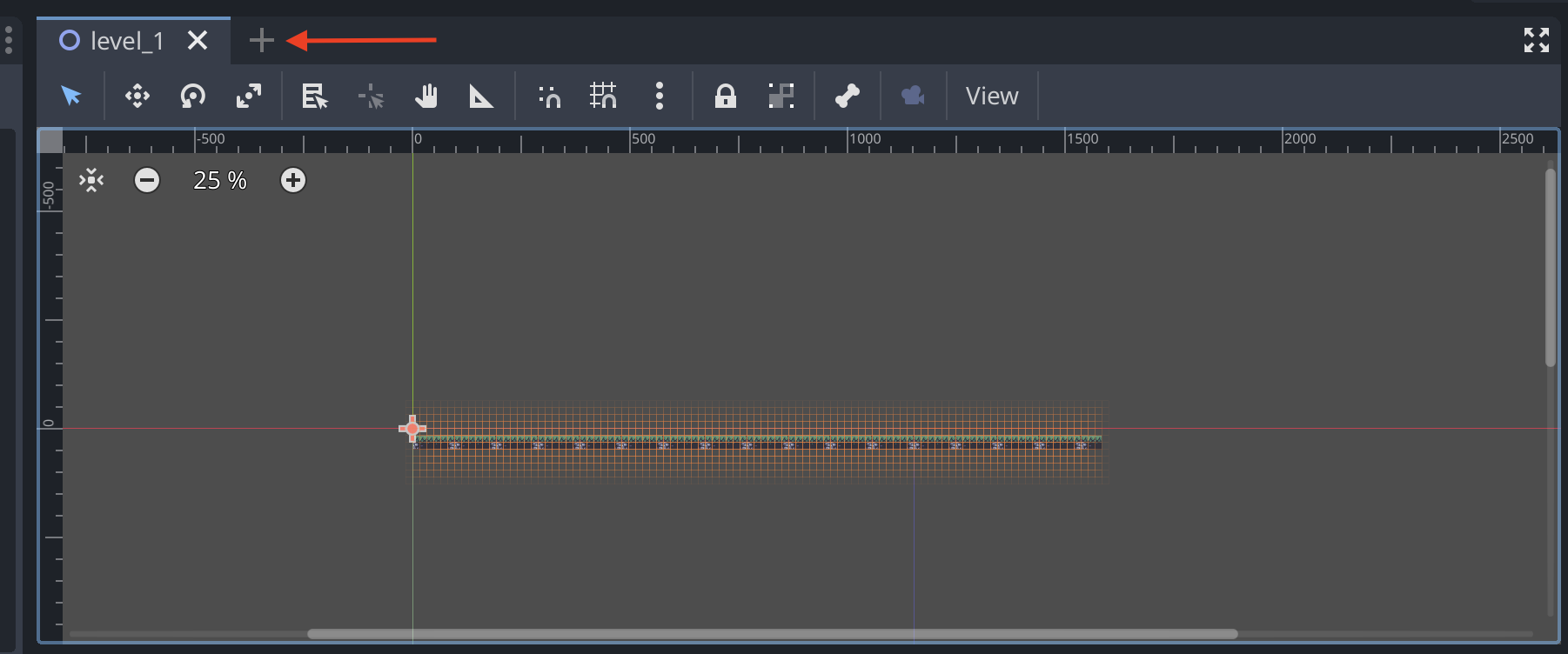
To create a player we need to create a new scene. To do this click on the New Scene button in the top left corner of the screen.
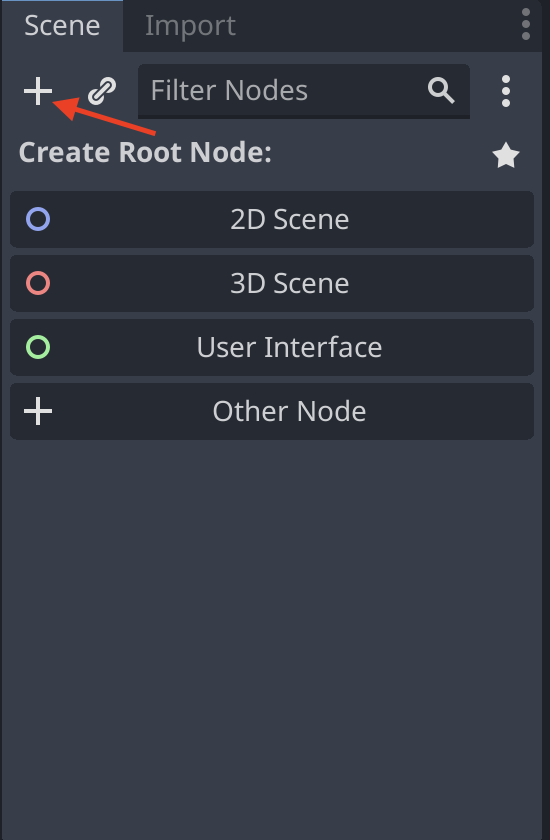
In the new scene you need to add a new root node. This can be done by clicking on the plus icon in the top left corner of the screen.
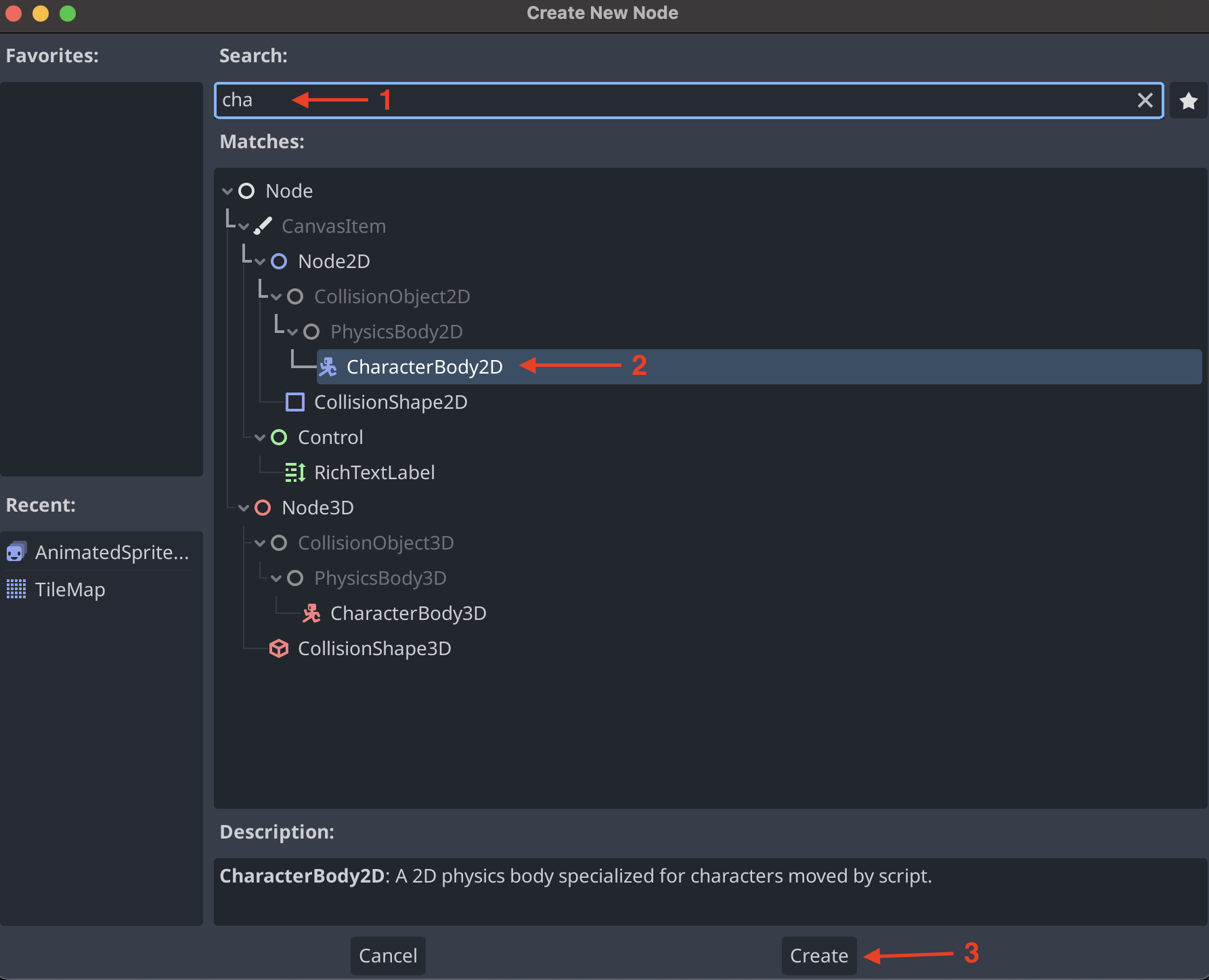
This will open a window where you can select the type of node you want to create. Here we search for CharacterBody2D and select the CharacterBody2D node. Then press the Create button.
Then we rename the CharacterBody2D by clicking on the CharacterBody2D node in the scene.
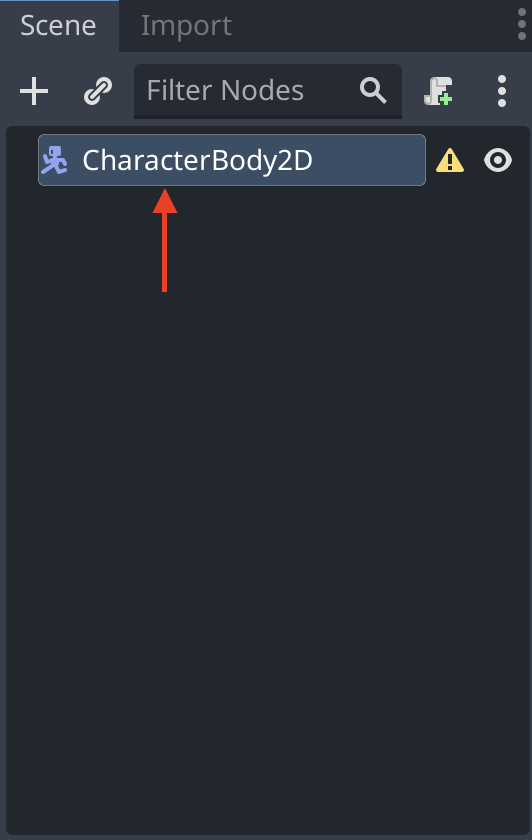
Rename the node to Player. Then click on the plus icon to create an AnimatedSprite2D.
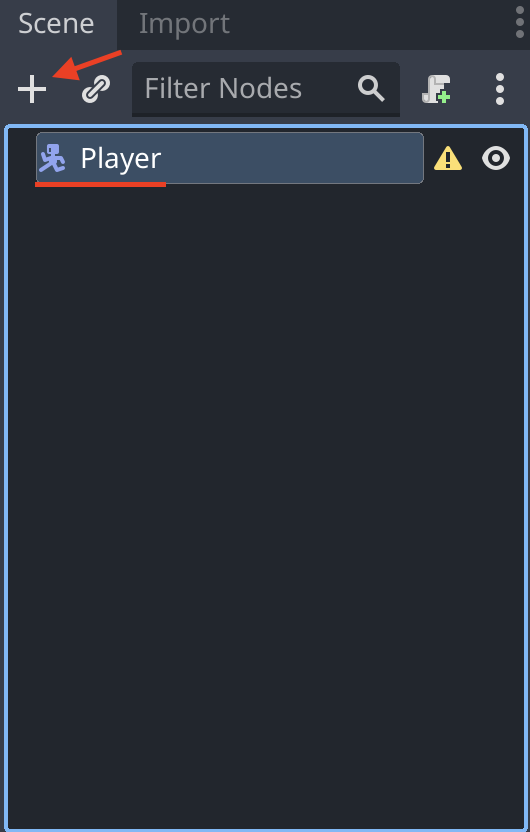
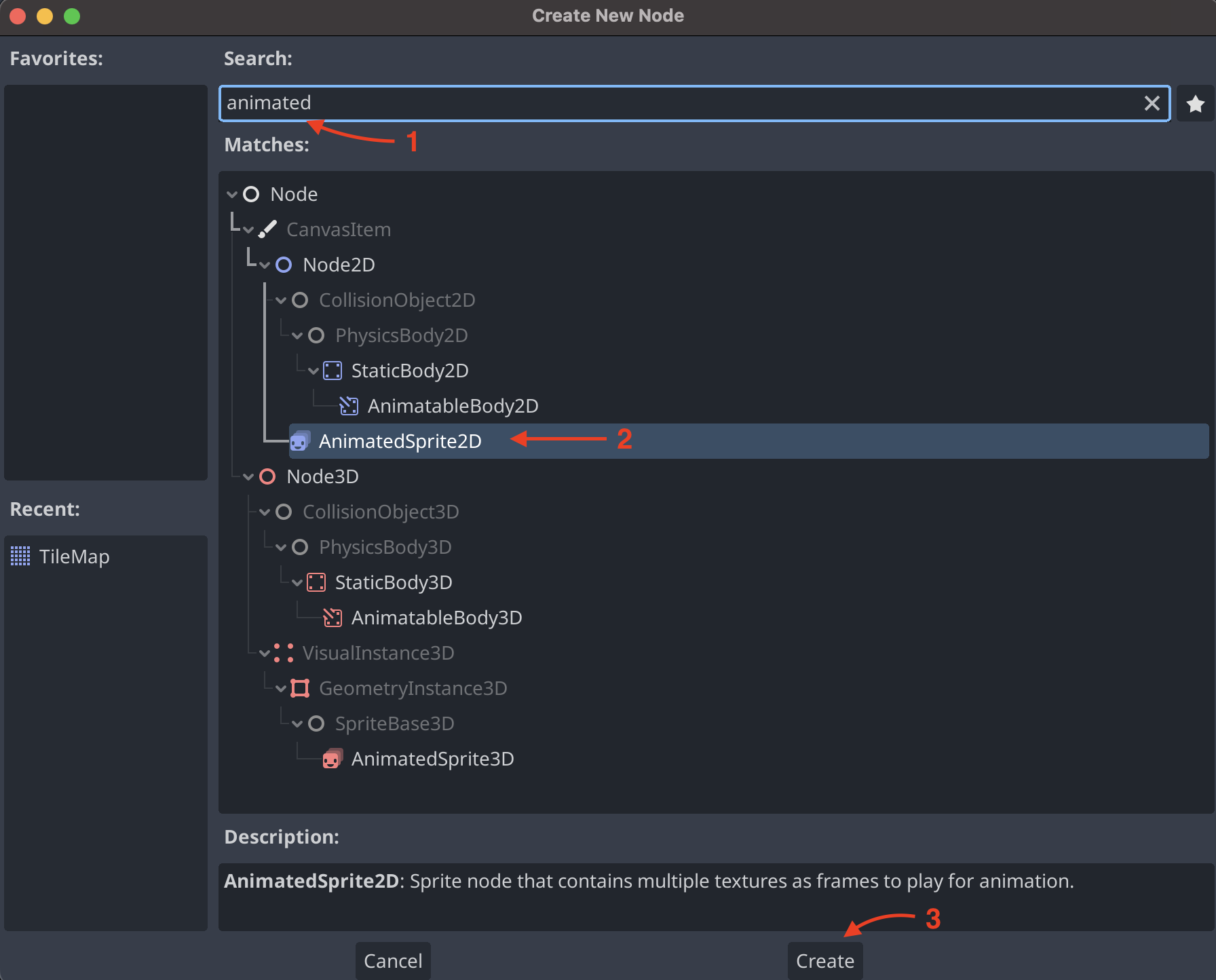
Search for the AnimatedSprite2D then click it and press Create.
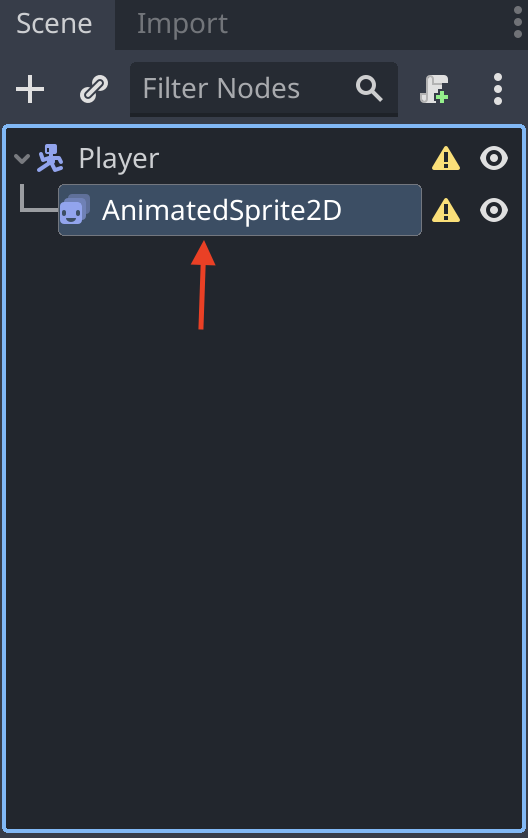
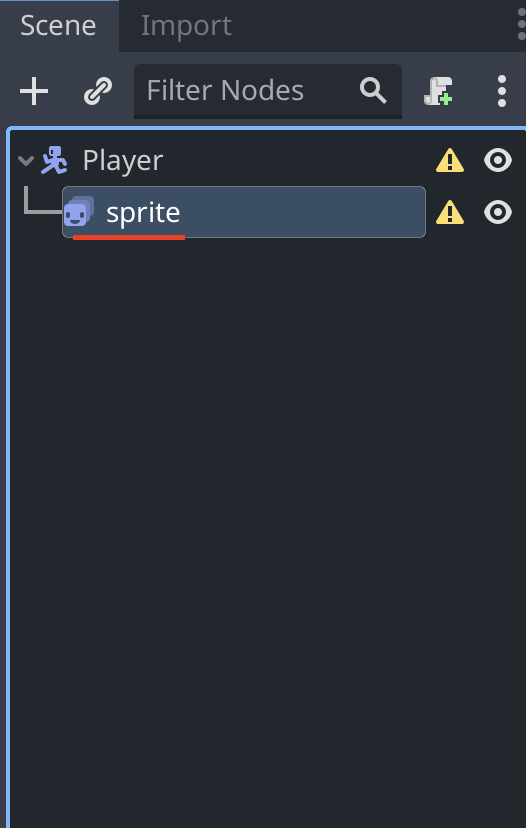
Now rename the AnimatedSprite2D to sprite.
It should then look like this:
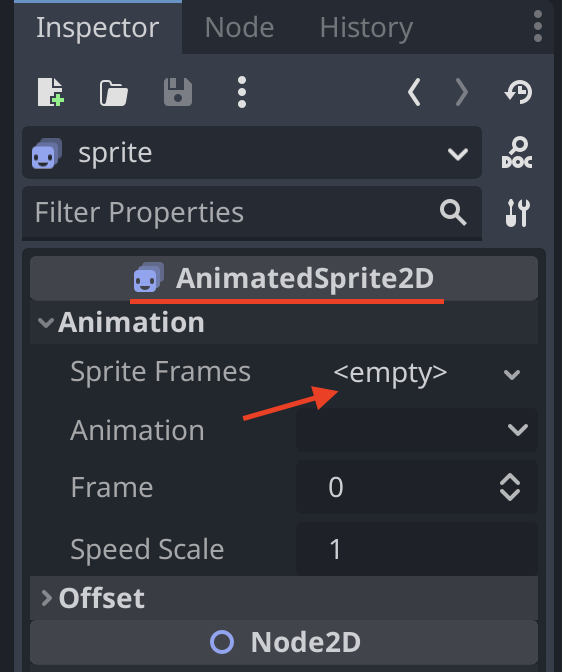
In the Inspector window find the AnimatedSprite2D section. Then click on <empty>.
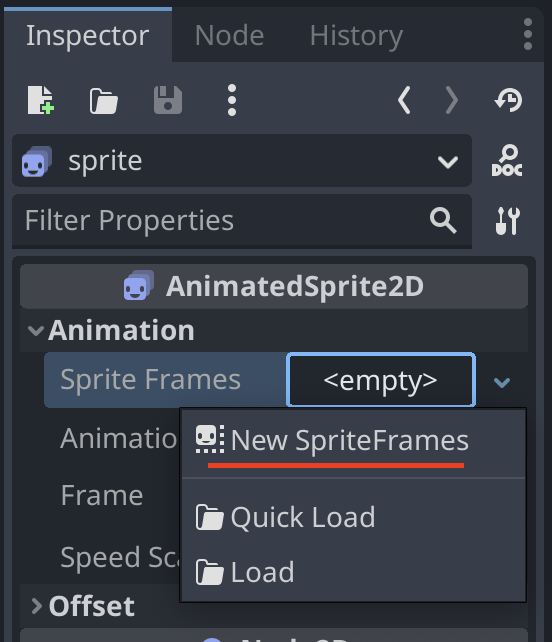
Then click on New SpriteFrames.
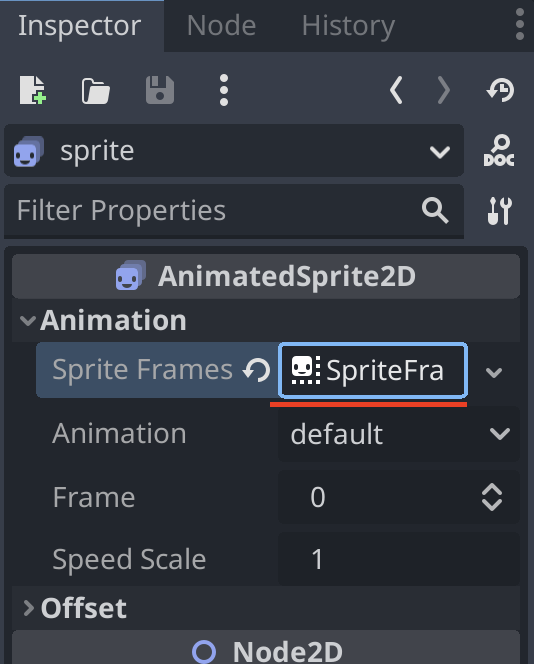
It should now look like this:
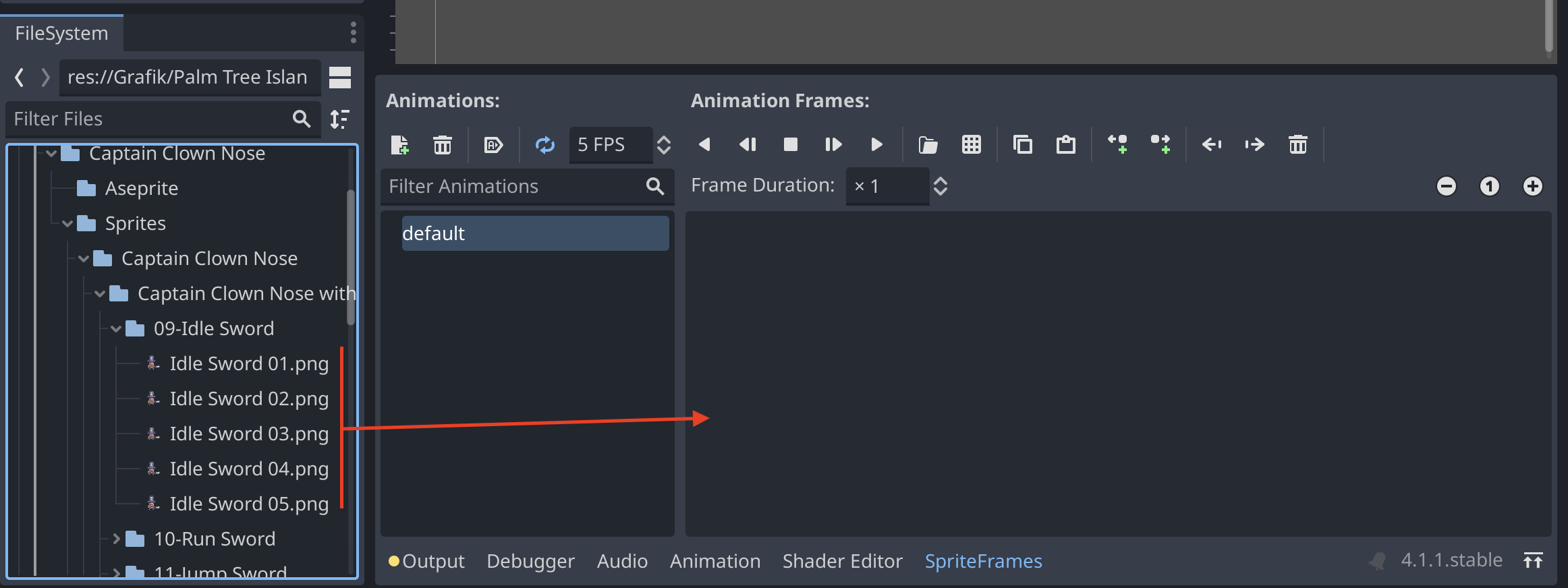
To add SpriteFrames we need to find the editor. To do this click on the SpriteFrames tab at the bottom of the screen. If you can't find it click on the sprite in the scene and then click on the SpriteFrames tab.
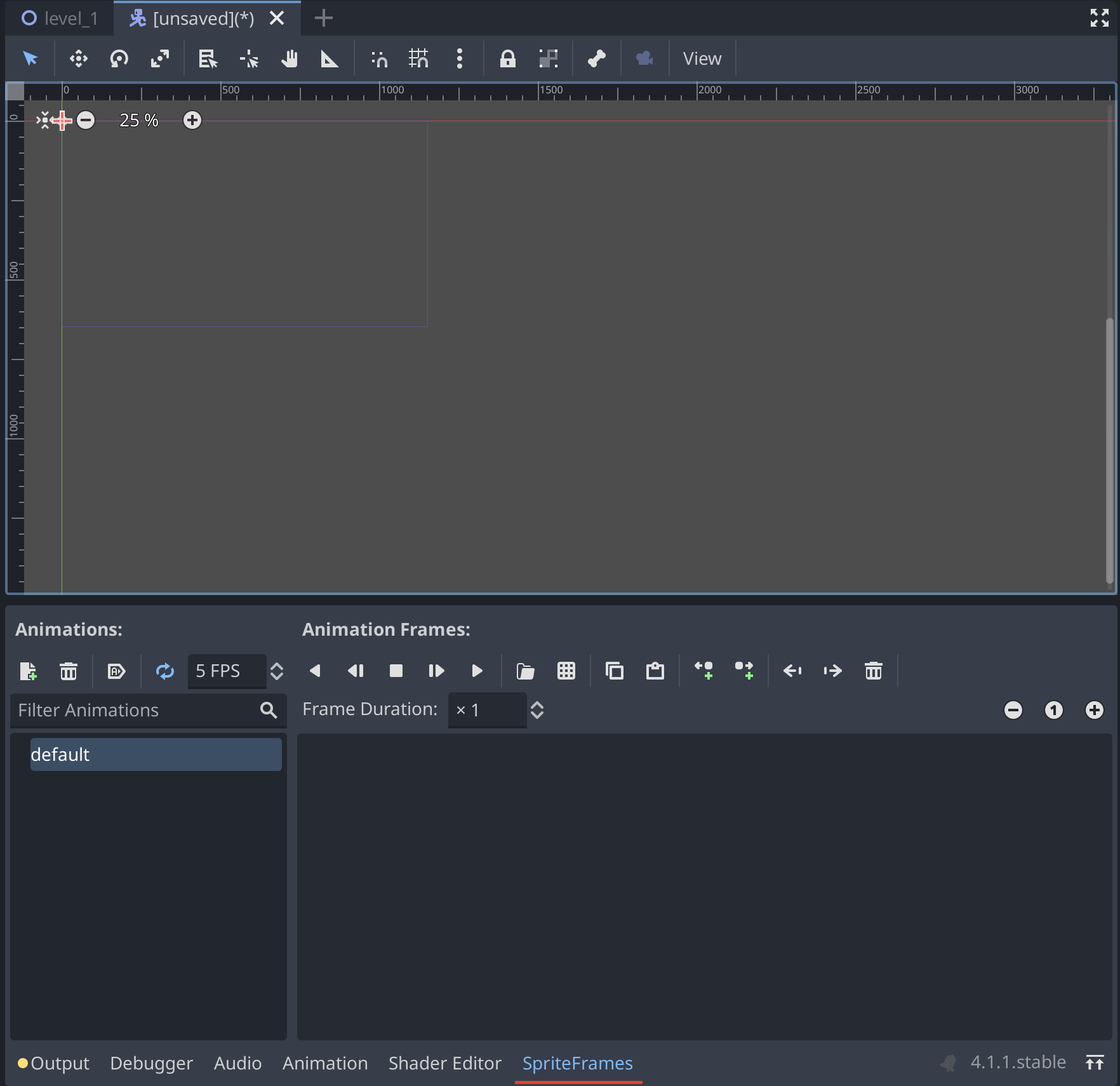
To add frames simply drag and drop the frames as shown below.
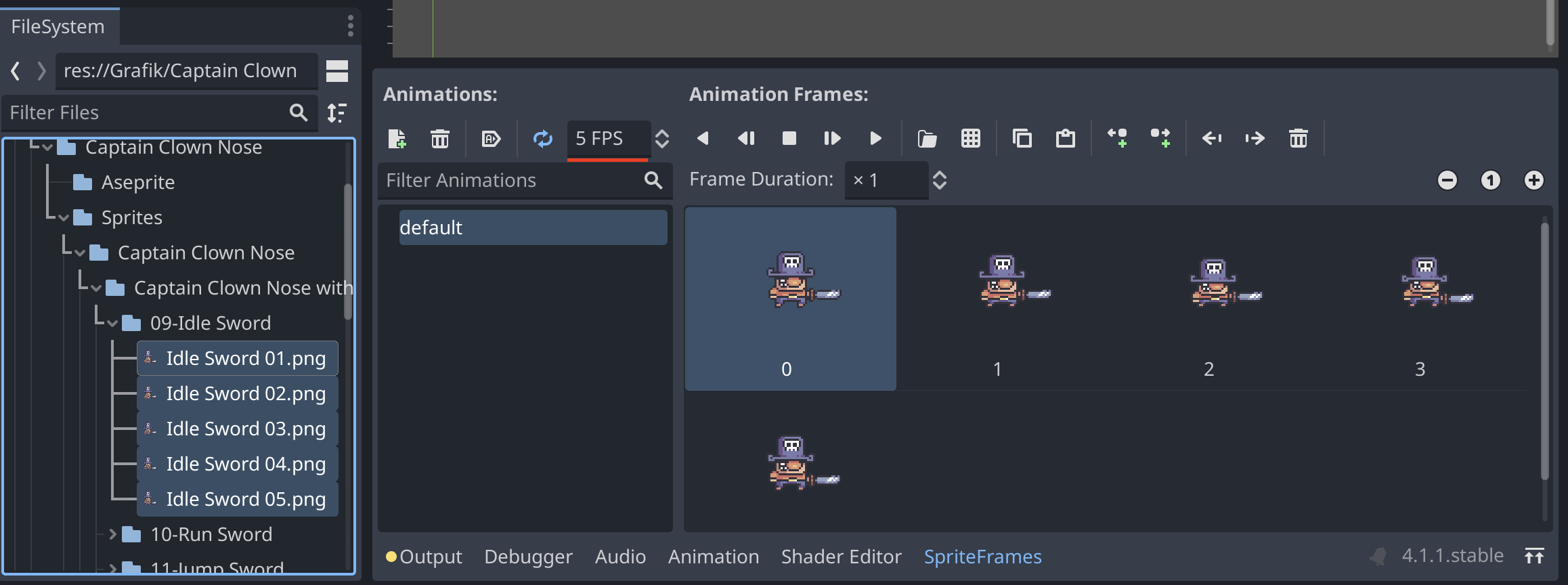
It should now look like this:
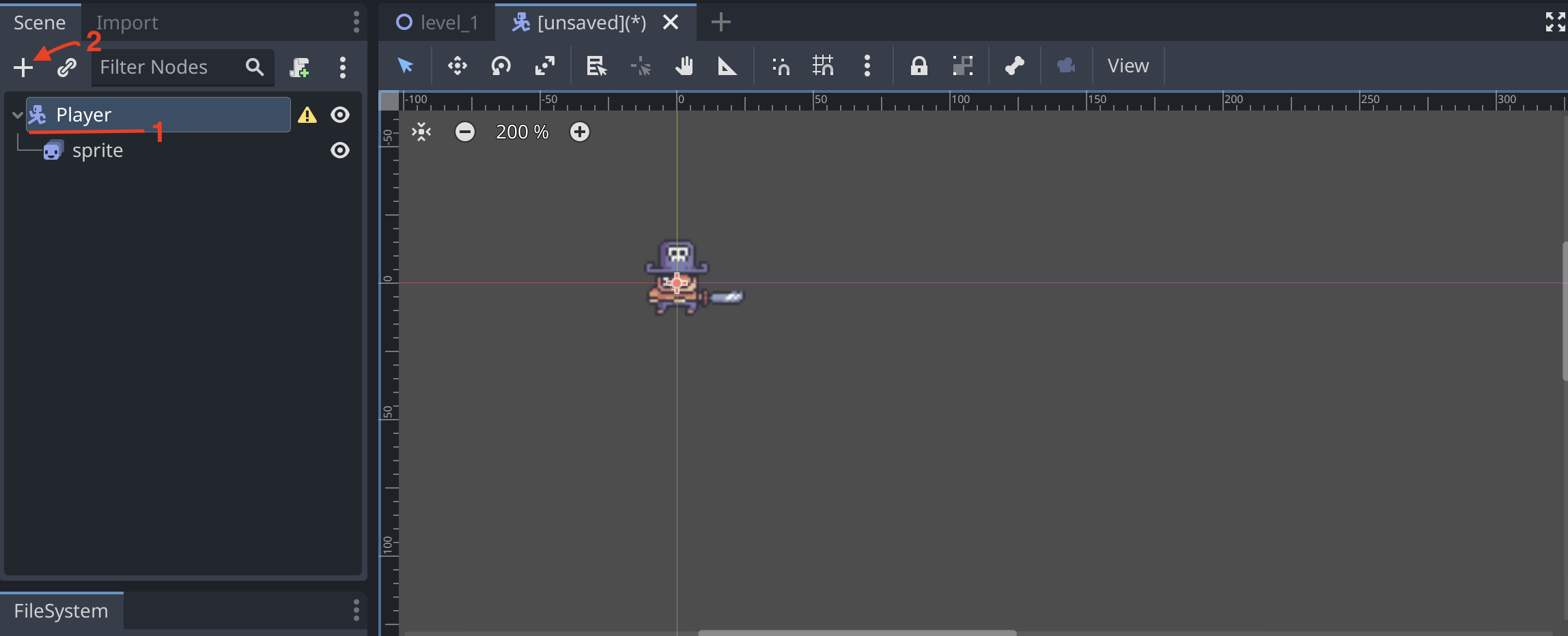
Now we want to add collision to the Player. To do this click on the Player in the scene and then click on the plus icon.
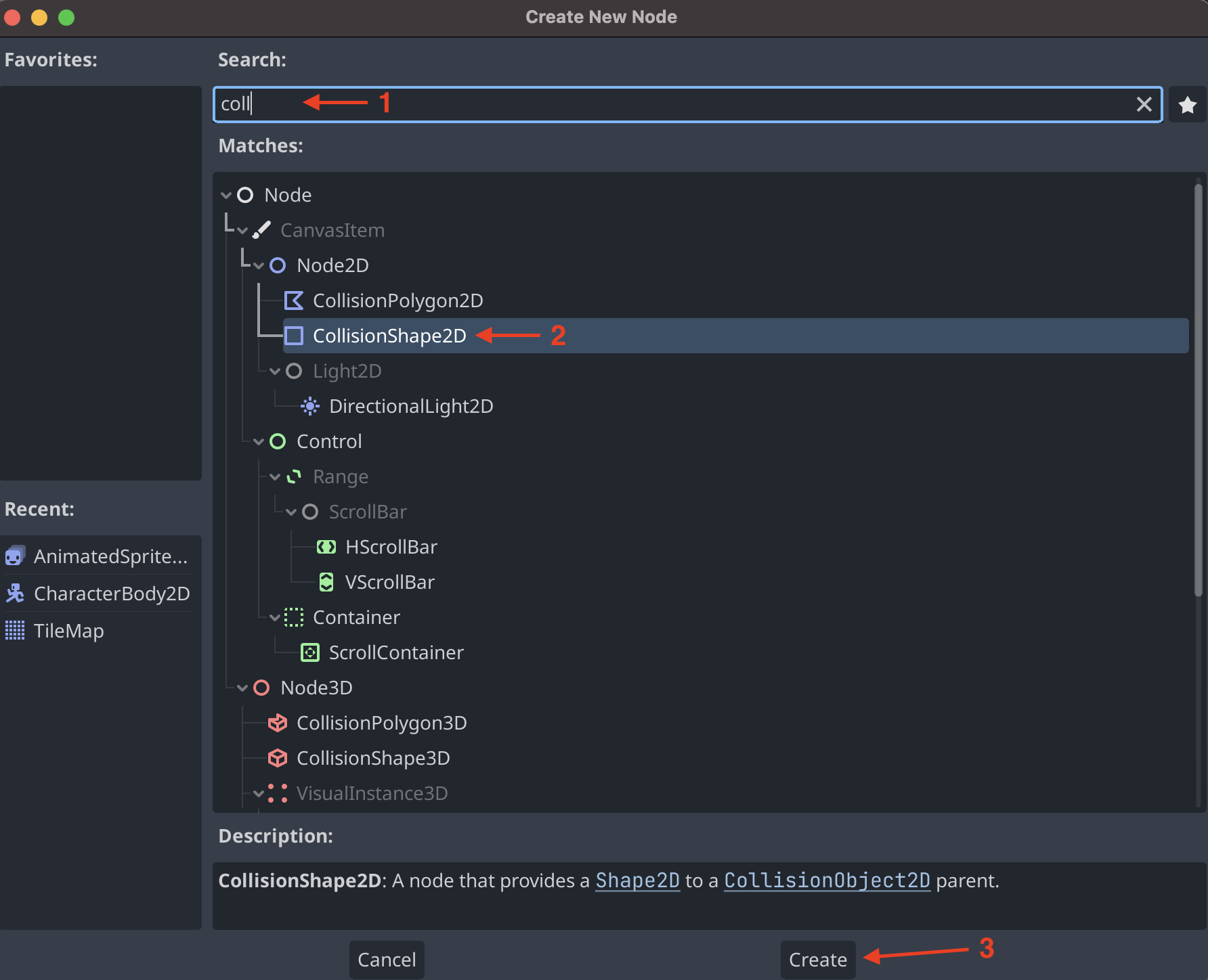
In the pop up search for CollisionShape2D and click on it. Then press Create.
Now we need to add a shape to the CollisionShape2D. To do this find the CollisionShape2D section in the Inspector window. Then click on <empty>.
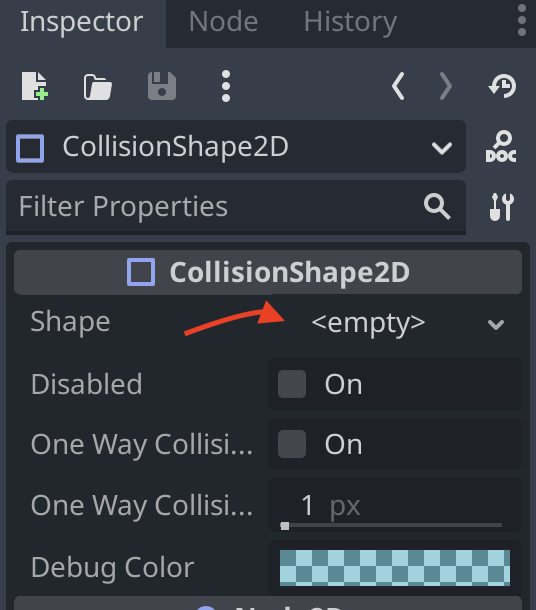
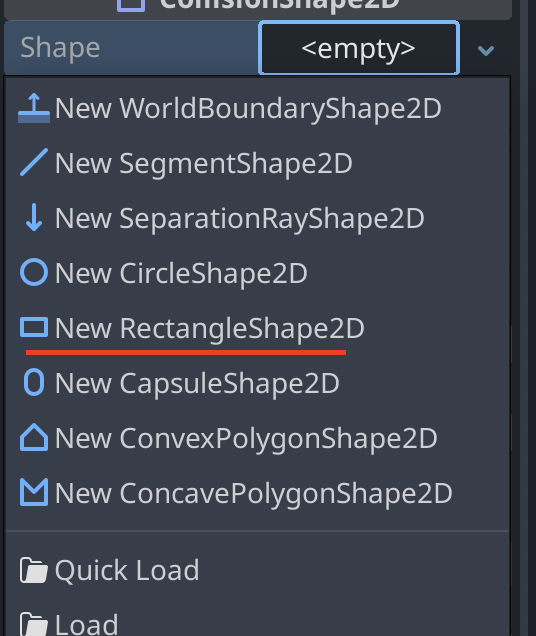
Now we select a shape in the dropdown. For this example we will use a RectangleShape2D.
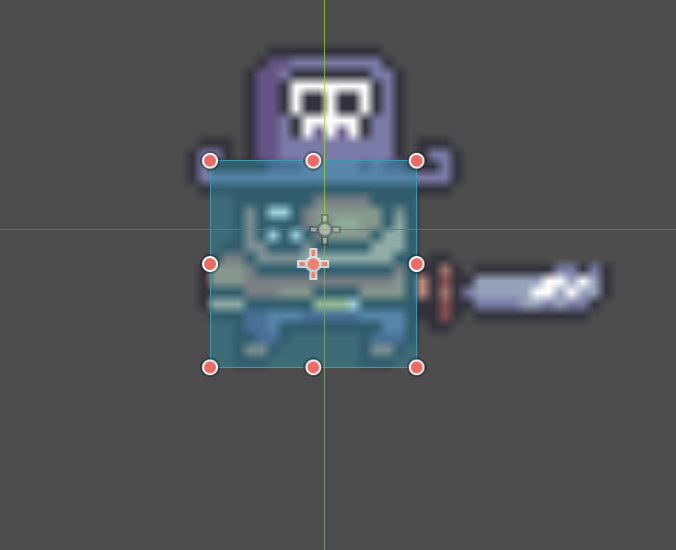
Now we can edit the shape to fit our sprite.
Then we add a camera to the scene. This will make sure that the camera follows the player when we play the game.
To do this click on the plus icon in the top left corner of the screen.
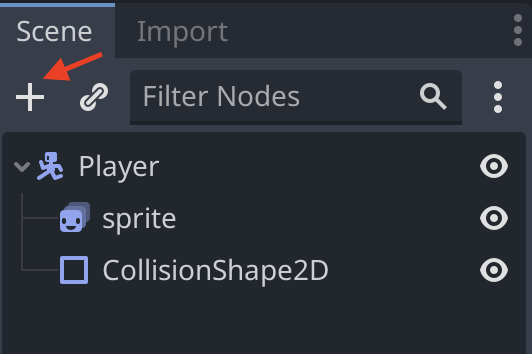
In the pop up search for Camera2D and click on it. Then press Create.
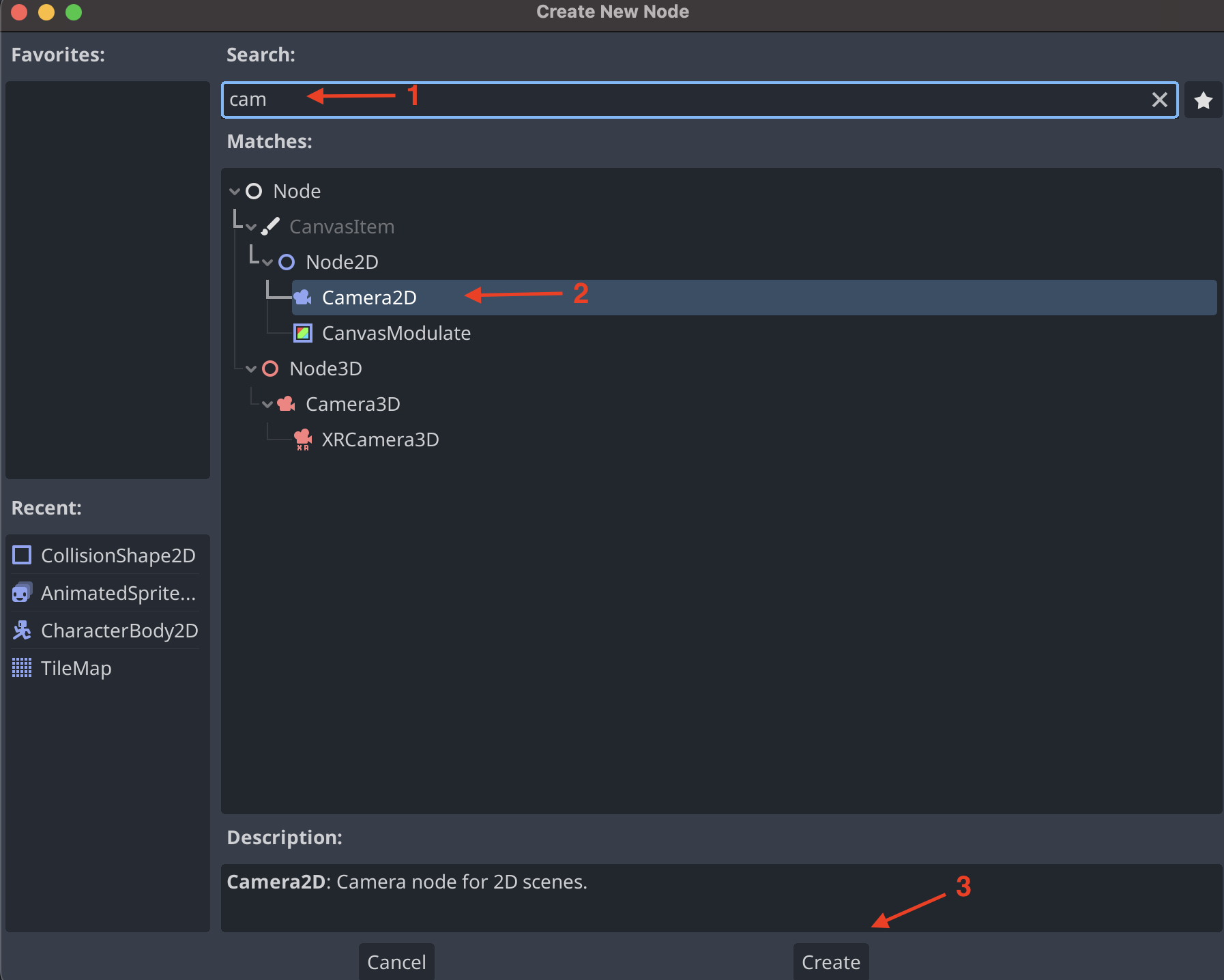
It should now look like this:
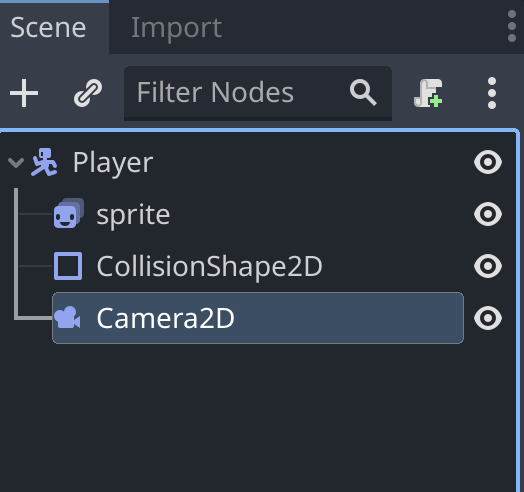
We can now change the zoom of the camera. To do this click on the Camera2D in the scene. Then find the Camera2D section in the Inspector window. Then change the zoom for x and y to 3.
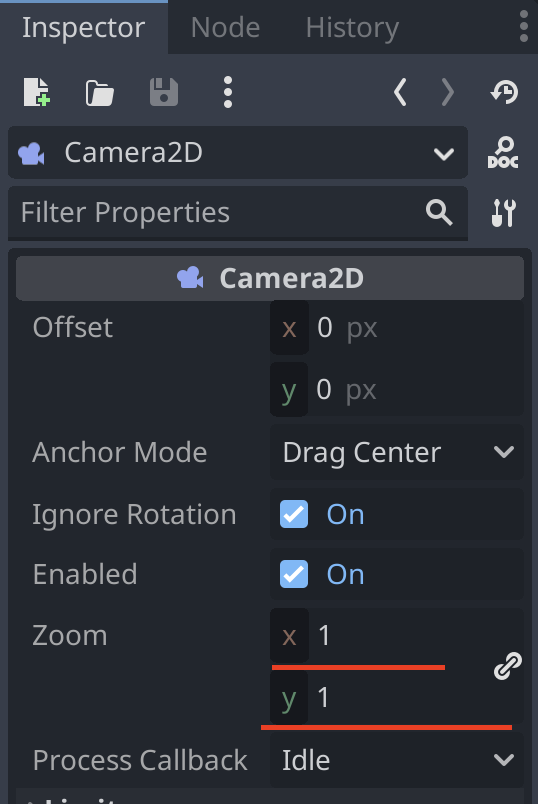
It should now look like this:
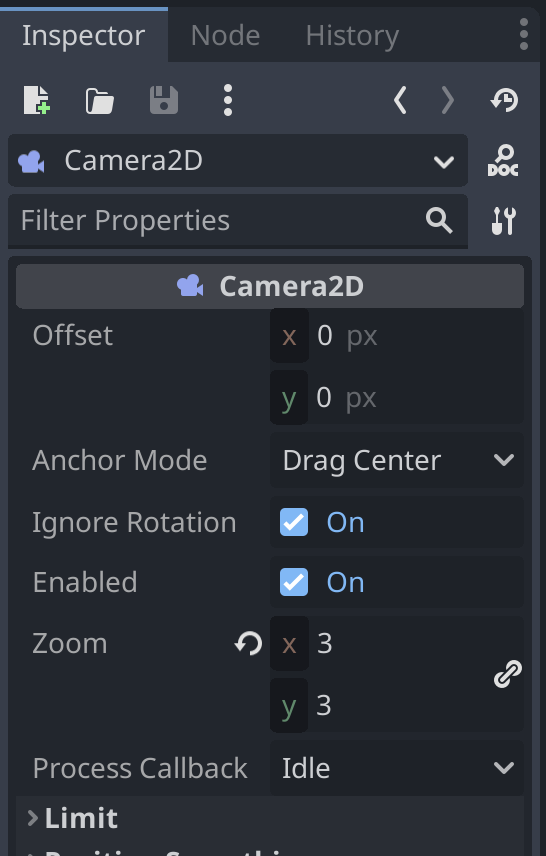
Now we can add a script so we can make the player move. To do this click on the Player in the scene. Then click on the script icon in the top right corner.
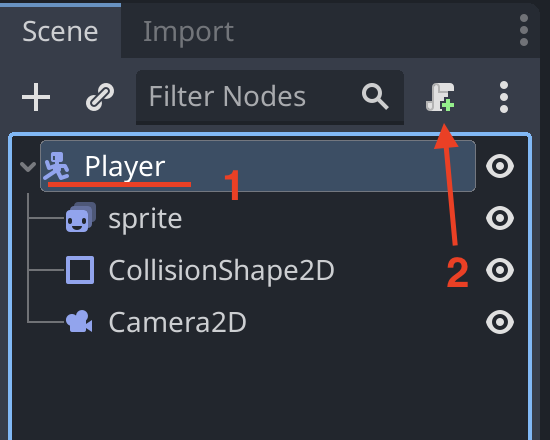
In the pop up make sure the srcipt is called player.gd. Then press Create.

Now we should have a script attached to the Player. That looks like this:
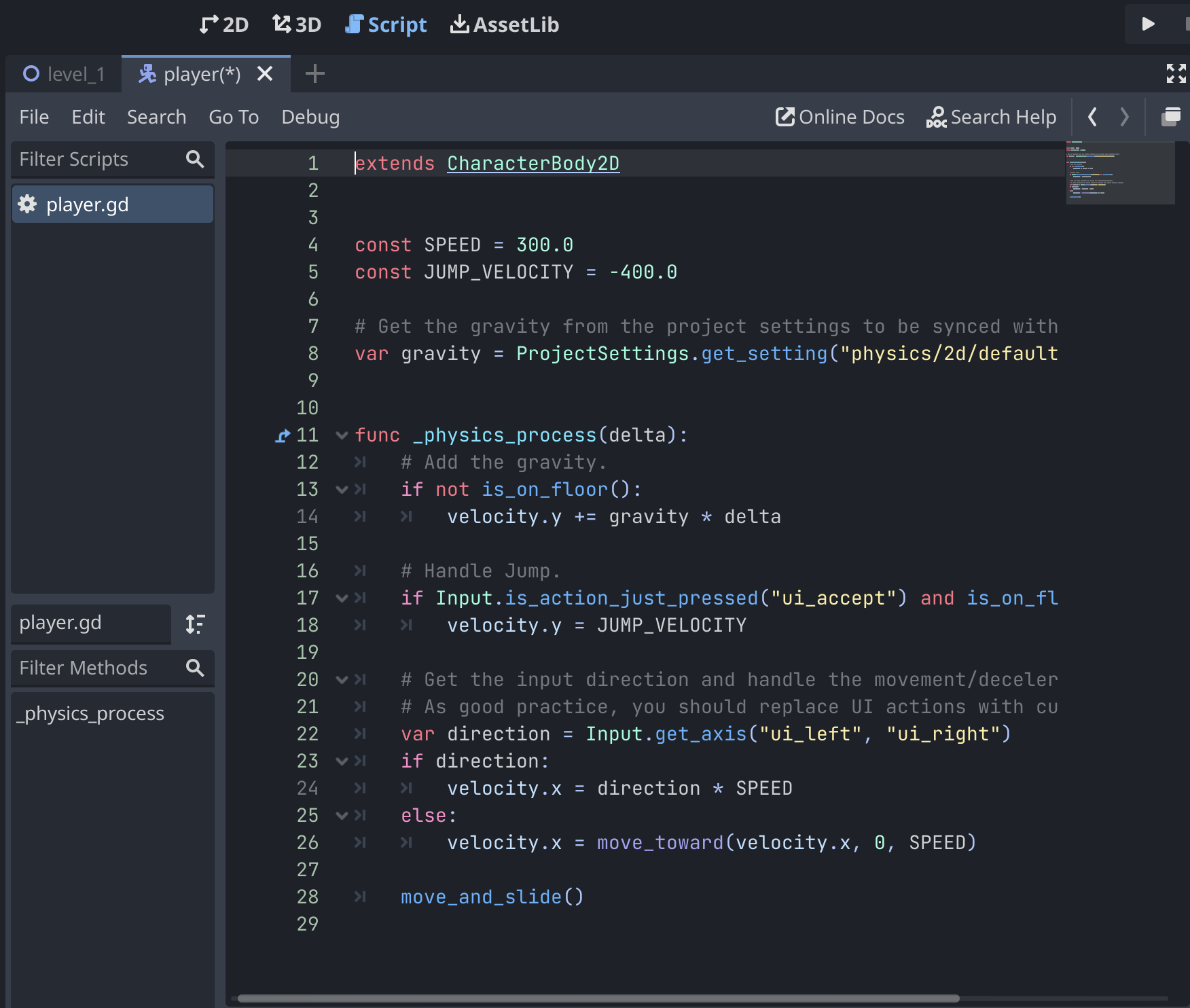
Delete everthing in the script except the first line so we only have this:
extends CharacterBody2D
Code will be added later.
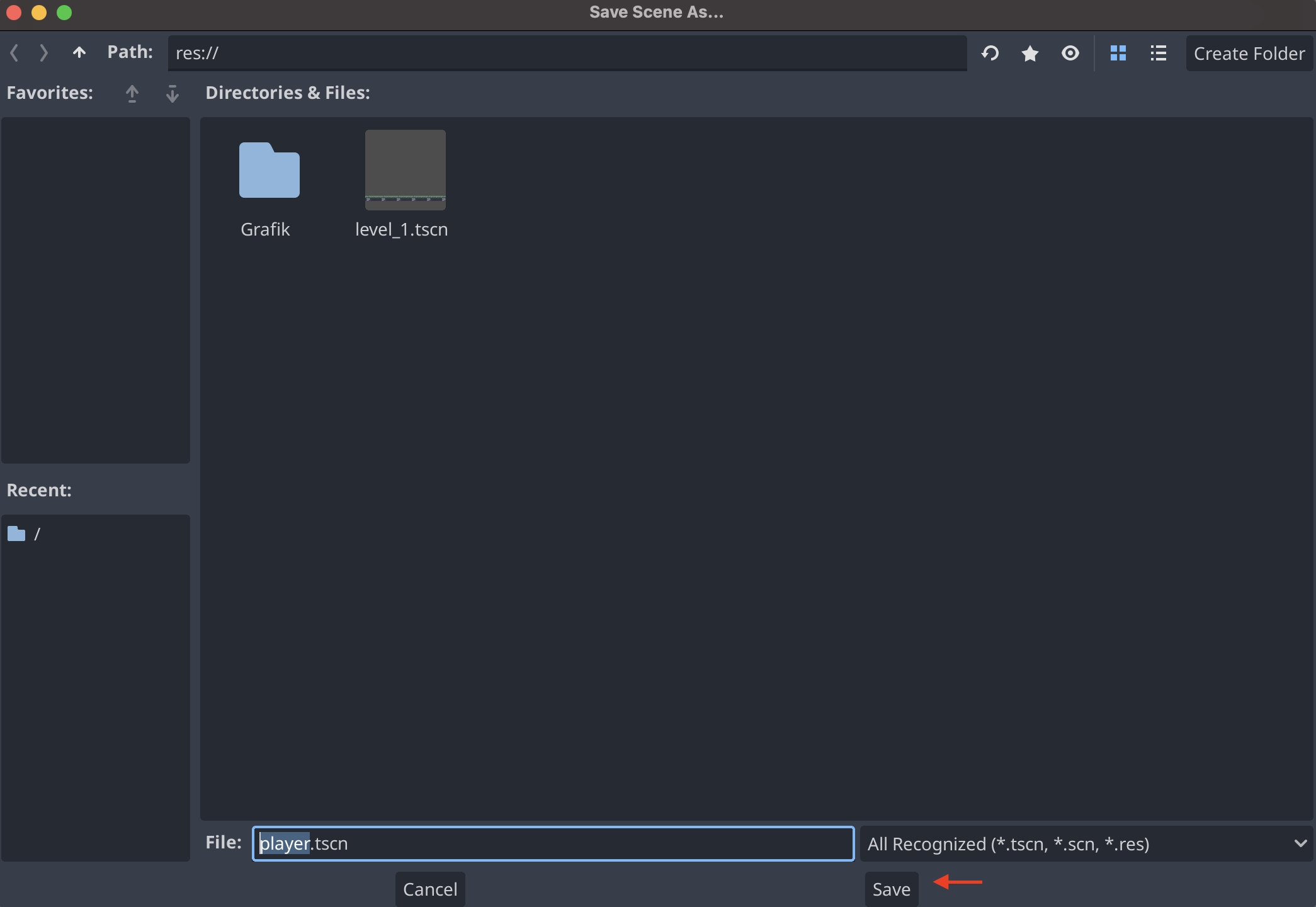
Now we need to save the player scene. To do this press Ctrl + S or cmd + S on mac. Then save the player scene as player.tscn by clicking on the Save button.
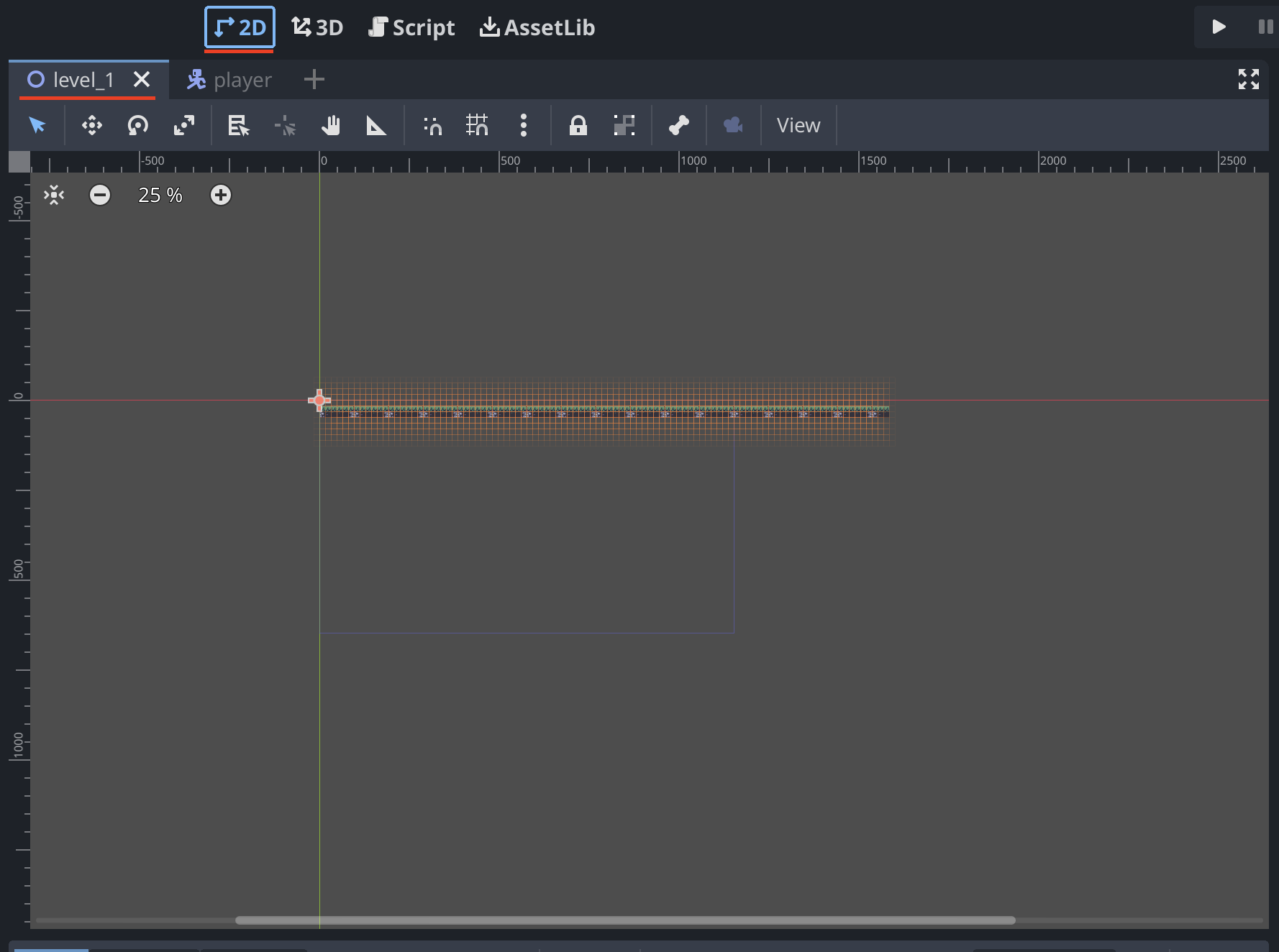
Now we can add the player to our level. To do the we first click on the level_1 at the top of the screen. If the level is not there it can be found in the FileSystem tab. Then click on the 2D tab at the top of the screen.
To add the player to the level we need to find the Player in the FileSystem tab.
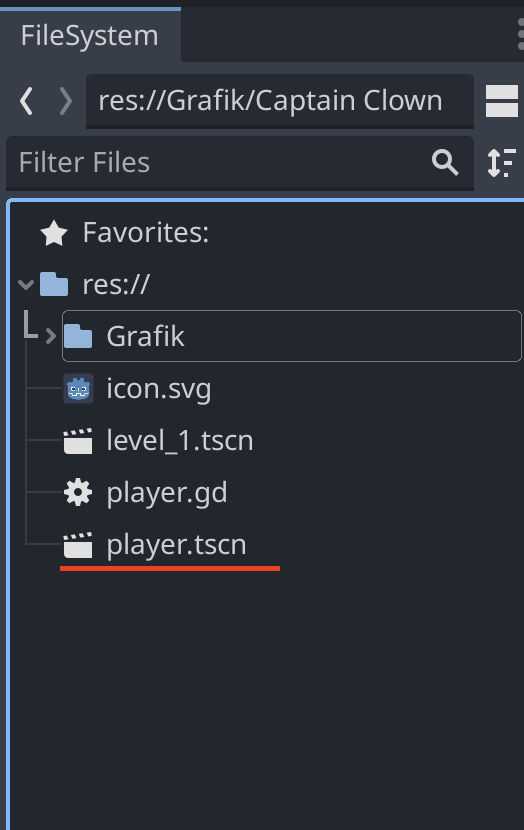
Then drag and drop the Player into the level.
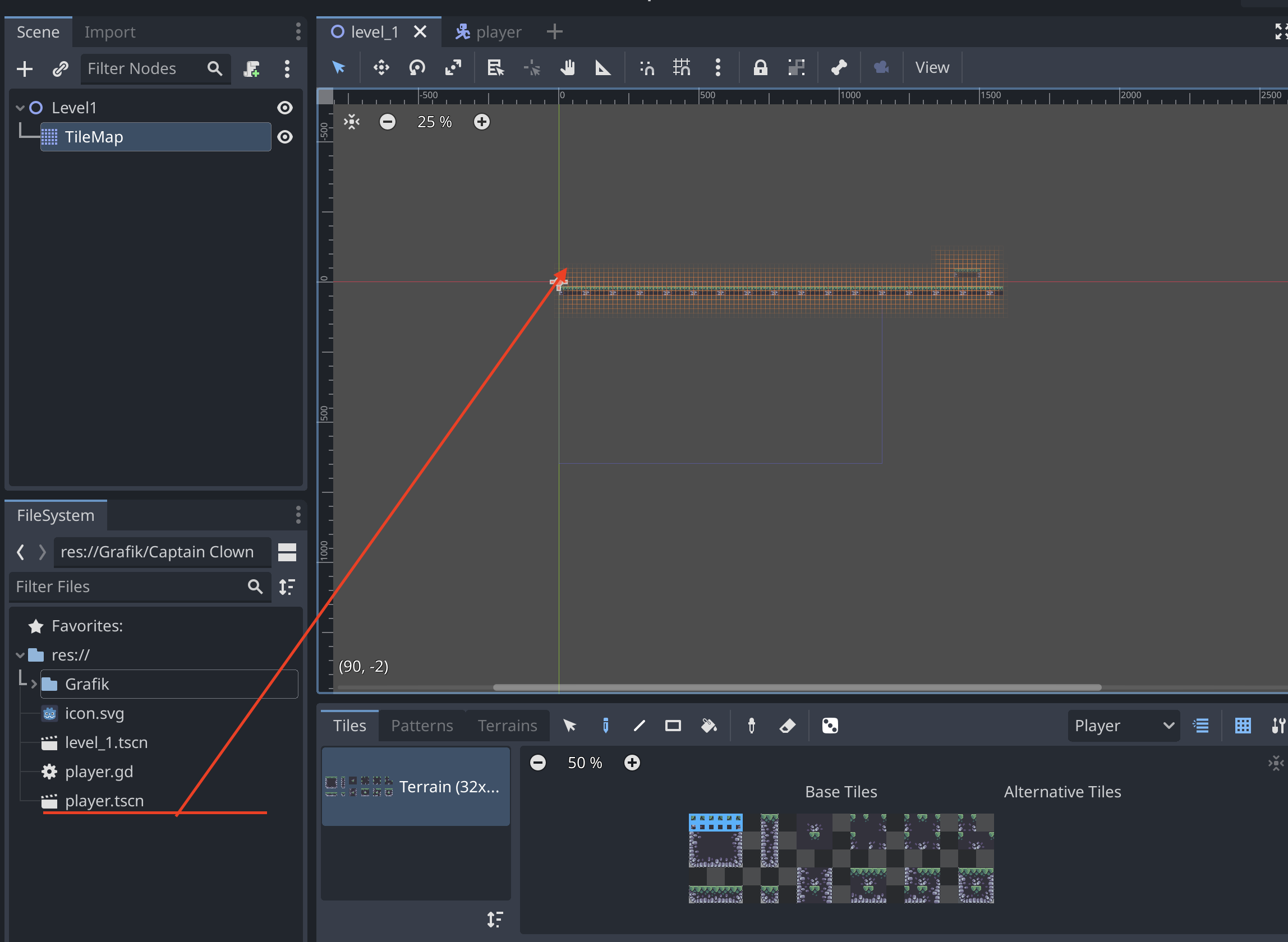
It should now look like this:
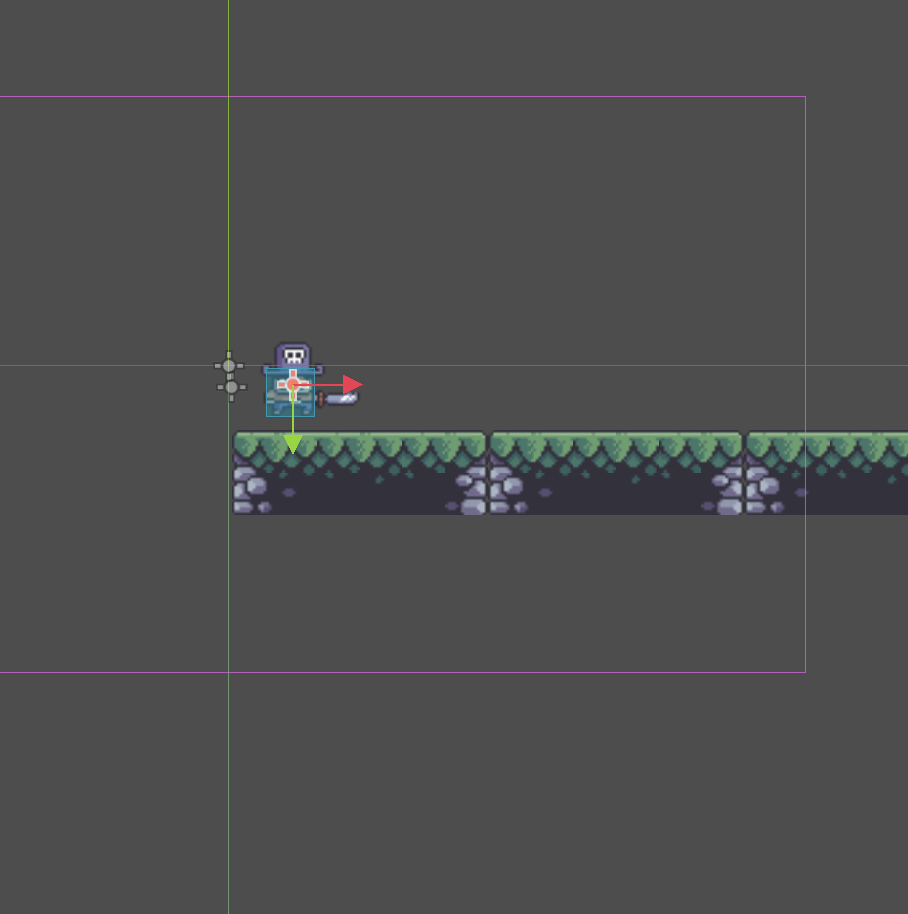
Thats it for this guide. In other guides we add more to the player.